 ReadingTrack
Watched it once?
Now keep what it said.
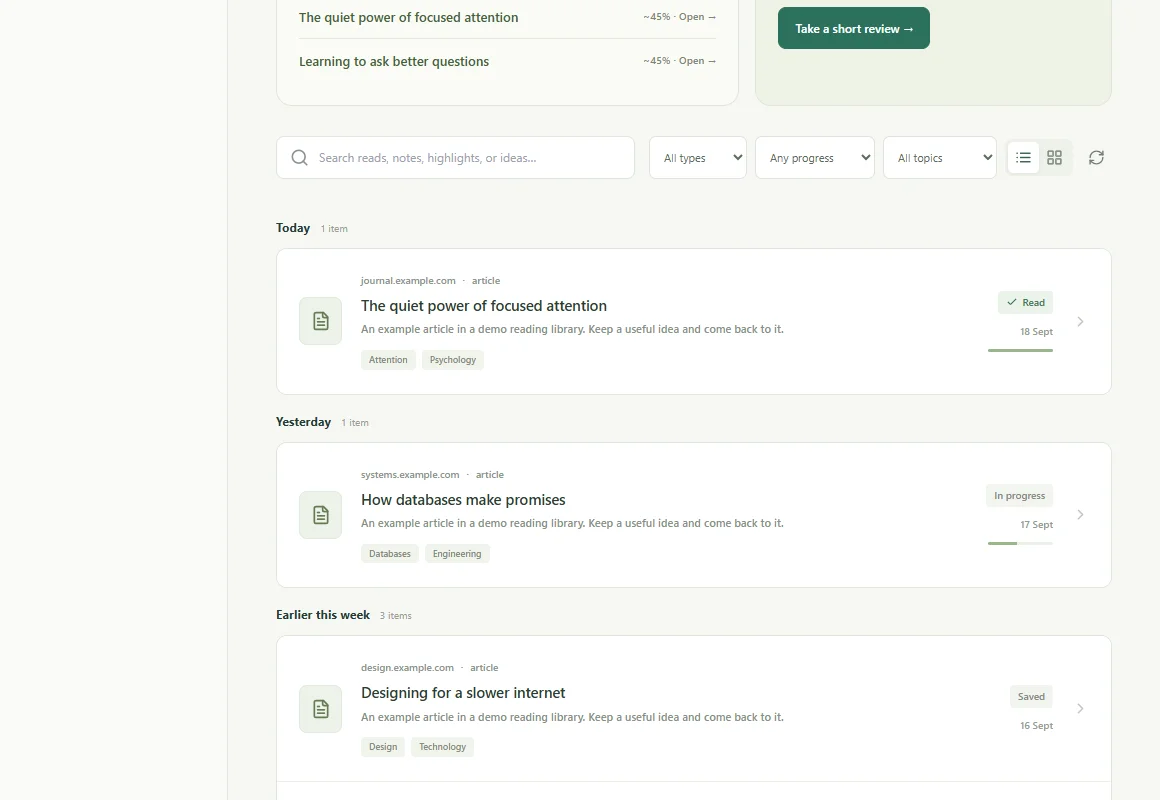
The ReadingTrack Chrome extension saves a YouTube video together with its transcript. It lands in your library as a clean, readable article with chapters and timestamps, so you can skim a 40-minute talk in ten, keep the line worth remembering, and get it back in a short review.
Desktop Chrome · free · or use the free transcript cleaner
Read the talk.
Watch the part that matters.
Most people read two or three times faster than a speaker talks. A saved transcript lets you skim, search and quote a video, and still jump into it at the right moment.
- 01 · SAVE
One click on the video page
The extension opens YouTube’s own transcript for the video and saves it, with the title, channel and chapters.
- 02 · READ
Paragraphs, not caption lines
Captions become readable paragraphs. Each one starts with a timestamp that opens the video at that moment.
- 03 · REMEMBER
Highlight it, then see it again
Keep the line worth remembering, add a takeaway, and get it back in a short review a few days later.
Copy a transcript from YouTube’s Show transcript panel and paste it into the free cleaner. It joins the lines into paragraphs, removes or keeps the timestamps, and lets you copy or download the result. SRT and VTT caption files work too.
It runs in your browser, needs no account, and works on any device. When you want the transcript in your library, save it from there.
A small addition
to the way you read.
- 01
Add the extension
Install ReadingTrack for Chrome and sign in. It takes about a minute.
- 02
Save a video
On any YouTube video, click the ReadingTrack icon and choose Save to ReadingTrack. The transcript comes with it.
- 03
Read, highlight, review
Open it in your library. Skim the paragraphs, jump to a timestamp, keep a highlight, and review it later.
Before you start.
What the product does, where it helps, and what the numbers mean.
How do I save a video with its transcript?
Install the ReadingTrack Chrome extension and sign in. On a YouTube video, click the ReadingTrack icon and choose Save to ReadingTrack, or press Ctrl+Shift+Y (⌘+Shift+Y on a Mac). The extension opens YouTube’s own transcript for that video, reads it and saves it to your library. You get a notification saying “Saved with transcript”.
What does the saved transcript look like?
Captions are joined into paragraphs of about a minute each, with the video’s chapters as headings. Each paragraph starts with its timestamp, which opens the video at that moment. It opens in the same reader as your articles, with highlights, notes, Listen and review.
What if a video has no transcript?
Then it’s saved as a link, as before, and the notification says so. Most videos have captions, either added by the creator or generated automatically by YouTube. Auto-generated ones have no punctuation and can contain mistakes; ReadingTrack keeps the words exactly as YouTube shows them.
Does this work on my phone?
Saving with a transcript needs the Chrome extension on a computer. On a phone, sharing a YouTube link to ReadingTrack saves the link. Once saved on a computer, the transcript is in your library on every device. You can also paste a transcript into the free YouTube transcript cleaner from any browser.
Is the transcript sent anywhere else?
The extension reads the transcript in your browser, from the YouTube page you have open, and sends it to your private ReadingTrack library. ReadingTrack’s servers don’t contact YouTube for it. Saved transcripts are private to you.
Is it free?
Yes. Saving videos with transcripts, the reader, highlights, Listen and review are free. ReadingTrack Pro adds more AI summaries, unlimited reading lists and your full insights history; see readingtrack.com/pricing.
Keep what the next good video said.
Add ReadingTrack to ChromeInstall the extension, open a video and choose Save to ReadingTrack.