Hundreds of bookmarks. Finally, a way to read them.
Bookmarks are where good articles go to be forgotten. Export them from your browser and import them into ReadingTrack: your folders become tags, so you can work through one topic at a time in a clean reader, or listen while you do something else.
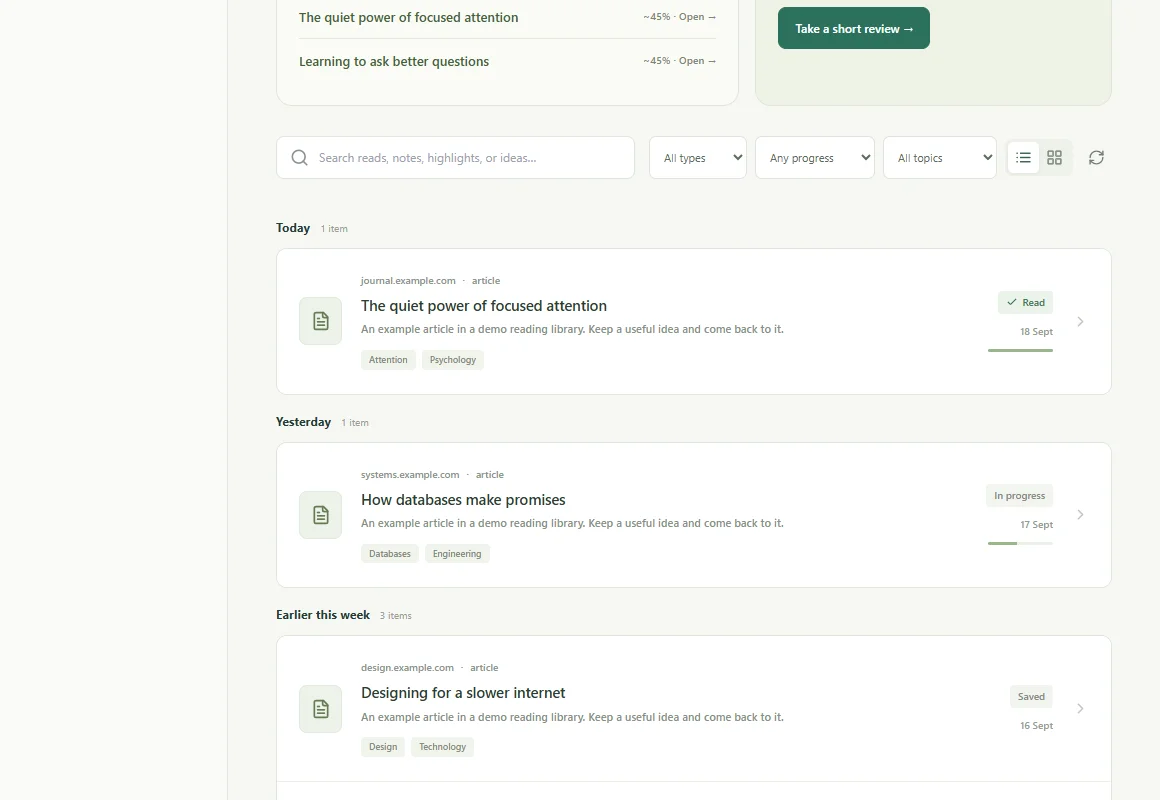
Actual ReadingTrack interface · illustrative data · open to enlarge
Save with intention.Read at your pace.Return with something.
ONE EXPORT FILE. ONE LIBRARY.
Your folders come with you.
Upload the export file you already have. ReadingTrack reads it in your browser, shows you what it found, and imports it in one go. Save dates are kept, so your library still reads in the order you built it.
FROM BROWSER BOOKMARKS
How to import from Browser bookmarks
Chrome or Edge: open the bookmark manager, choose the ⋮ menu, then Export bookmarks. Firefox: Bookmarks › Manage bookmarks › Import and Backup › Export Bookmarks to HTML. Safari: File › Export › Bookmarks.
Upload the .html file here. Folders become tags, so you can filter by them in your library.
Saving was never the hard part. ReadingTrack helps with what comes next: a clean reader for supported articles, active reading time from the Chrome extension, and highlights and your own takeaways in one place.
On supported articles, AI summaries and review questions point back to source passages, so an idea from last month is still there when you need it. Saved, in progress, read and archived stay separate, so your library shows what you have actually read.
THREE STEPS, A FEW MINUTES
From export file to reading library.
01
Find your export
Export your bookmarks from your browser as an HTML file. Every main browser can do it in a few clicks.
02
Import in one go
Sign in, choose the file and check what was found. Tags, archive status and save dates come across.
03
Read what you saved
Open your library, filter by tag or status, and pick up a good read. Add highlights and takeaways as you go.
What the product does, where it helps, and what the numbers mean.
Which browsers can I import from?+
Any browser that exports bookmarks as an HTML file: Chrome, Edge, Firefox, Safari, Brave, Vivaldi and Arc among them. The importer shows the steps for each of the main browsers.
What happens to my folders?+
Each folder becomes a tag, including folders inside folders, so you can filter your library by them. The top-level Bookmarks bar, Other bookmarks and similar folders are left out because every bookmark is in one of them.
Will it import links that aren’t articles?+
Every web link comes across, including tools and home pages. Skim the list once it’s in and archive what you don’t mean to read; archived items stay searchable. Duplicate links are merged into one item with all their tags.
Does importing change my browser bookmarks?+
No. Exporting makes a copy. Your bookmarks stay in your browser exactly as they were.
How many bookmarks can I import?+
Up to 20,000 links at a time, newest first. AI summaries start for your newest unread articles, up to what is left of your plan’s monthly allowance (30 on the free plan); the rest are saved as normal.
Is ReadingTrack free?+
Yes. Importing, your library, the reader with Listen, the Chrome extension and the mobile apps are free. ReadingTrack Pro adds more AI summaries, unlimited reading lists and your full insights history; see readingtrack.com/pricing.
 ReadingTrack