Bookmarks
What you want to read.A useful starting point. A saved link alone doesn’t tell you what happened next.
 ReadingTrack
Remember the article, not the tab you left it in. Keep the link, your reading activity and the ideas you want to return to in one place.
Online articles. Your own pace. Free to get started.
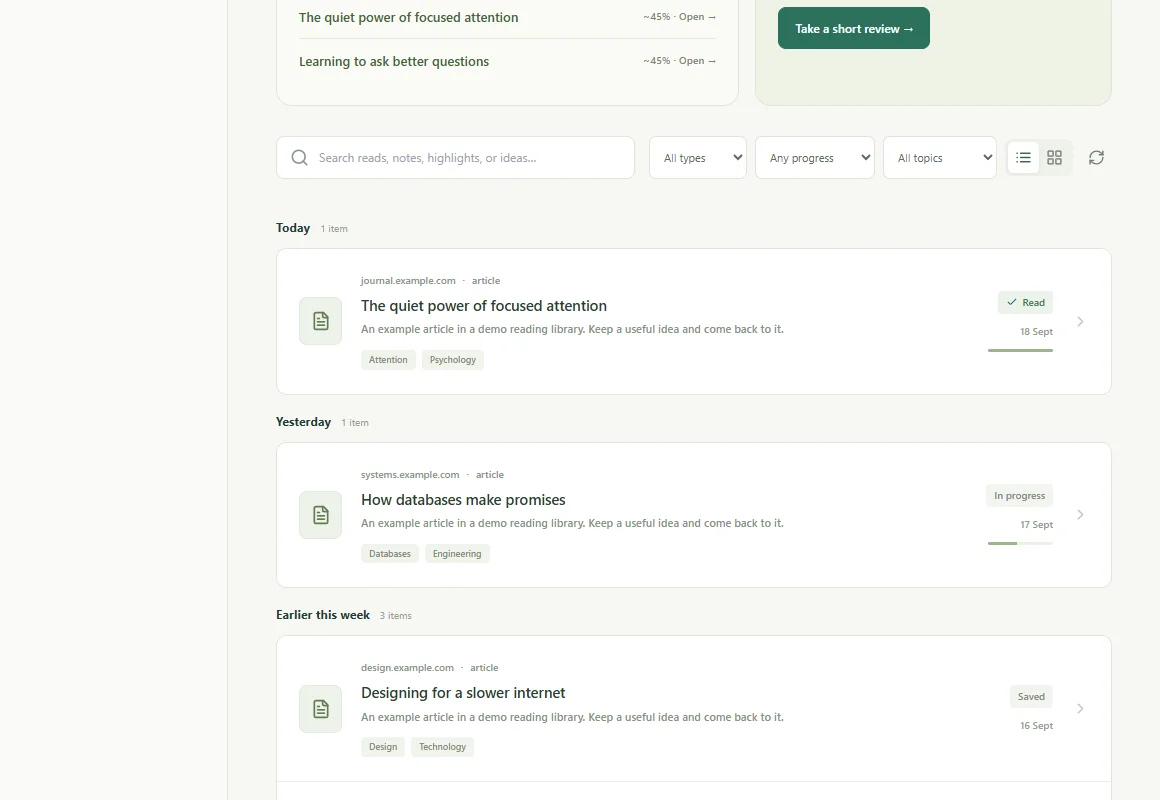
A useful starting point. A saved link alone doesn’t tell you what happened next.
Searches, redirects, inboxes and articles share the same list of visits.
Connect articles to tracked sessions, highlights and the ideas you kept.
Search a phrase from your notes. Filter by topic or progress. Find the article—and your own perspective on it.
“Give a good idea somewhere to land.”MY TAKEAWAY
Before opening another article, write one thing I want to try.
On supported articles, explore AI summaries, ideas and review material with source passages. Add your own notes and try recall before revealing an answer.
The extension suggests up to three ideas per day on that browser. Pause suggestions when you need a quieter day.
See how your reading adds up →Add an article URL on the website or choose Save page in the Chrome extension.
Use the extension to track active time on saved pages. Add a highlight, note or takeaway.
Explore your history and Insights. Return to a source or start a short review.
Save links on the website. Active reading-time tracking requires the Chrome extension.
What the product does, where it helps, and what the numbers mean.
Paste its link into your library on the website, or sign in to the Chrome extension and choose Save page. Use the extension on saved pages to record active reading time.
Yes. Library search includes titles, notes, highlights and ideas. Type, progress and topic filters help narrow down your saved reads.
The extension records additional reading sessions for a saved page. Synced active time accumulates across visits, so returning to an article is part of its history.
Yes. Add notes, highlights and your own takeaway. On supported content, AI extraction adds summaries and ideas with source passages. Extraction can fail for inaccessible or unsupported pages, and AI output needs your judgment.
Settings offers a JSON export of saved reading history, synced sessions, notes, highlights and review history. Removing an item from your library is not a promise of immediate permanent deletion from every stored record. Contact support for data-deletion requests.
Your library starts with a link. Your story grows from there.